
Payments user guide
Quick navigation
- Part 1: How to create a Stripe connected account
- Part 2: How to receive payments
- Part 3: How to send and refund payments / cancelation policies - FitPro
- Part 4: Cancel or reschedule of booking
- Part 5: How to refund payment back to customer
All payments in the application between end users are processed using the Stripe payment gateway. Stripe is a payment service provider that lets merchants accept credit and debit cards. Premium FitPro users who wish to collect in-app payments will need to establish a Stripe account. Users will be guided through Stripe account setup the first time they enable payments in the SweatNow app. In this section you will find information on what a connected account is and how to create it, how to pay for a class, how to accept a payment, how to refund a payment, how to withdraw your money and what are the fees for payments.
Stripe connected account
In order to be able to receive payments through the SweatNow application, you need to have an activated premium SweatNow subscription and have created a Stripe connected account. Connected accounts allow users to use the Stripe Connect platform to monitor and manage payments and receive funds directly to your preferred bank account. Additional information about the Stripe Connect platform can be found at Stripe Connect and Stripe Connect docs.
Part 1: How to create a Stripe connected account
Once you go to create new class, check the option that states Require payment.
In order to be able to receive payments through the SweatNow application, you need to have an activated premium SweatNow subscription and have created a Stripe connected account. Connected accounts allow users to use the Stripe Connect platform to monitor and manage payments and receive funds directly to your preferred bank account. Additional information about the Stripe Connect platform can be found at Stripe Connect and Stripe Connect docs.
Toggle on Require payment (*premium) in the class detail screen, then tap Create Stripe Account to begin setup.
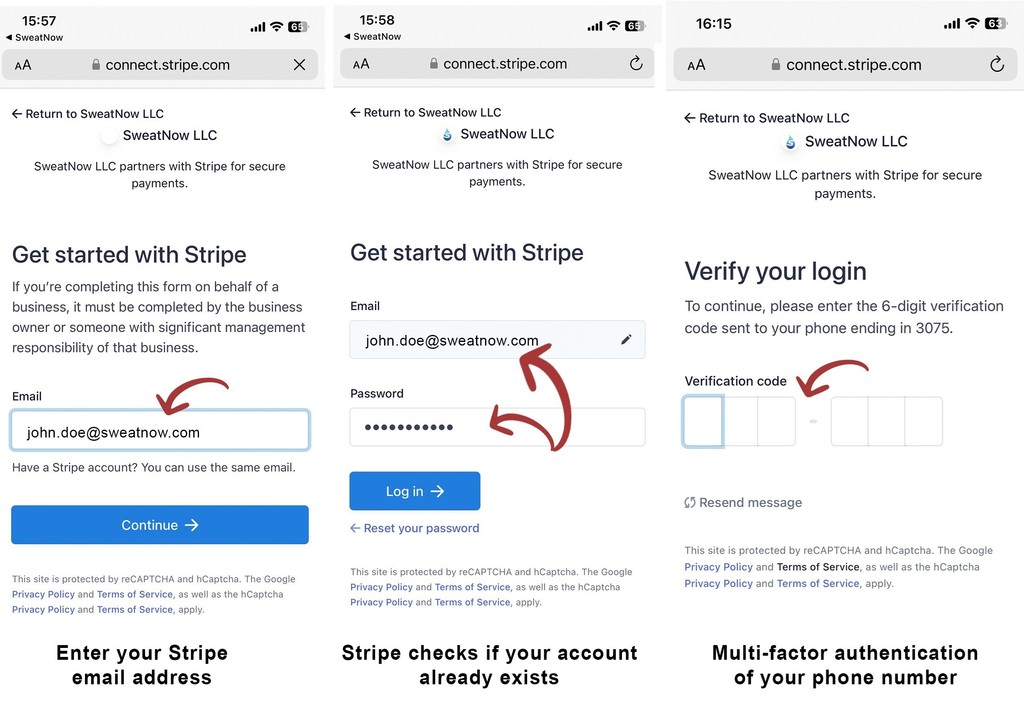
You have two options: either use an existing Stripe account, or create a new Connected account with an email address that is not already registered in Stripe.
If you use an existing Stripe account, once you log into Your Stripe account, it will be automatically connected to the SweatNow platform.
If you create a new Stripe account, you will be automatically guided through the setup process. After providing all the required information, Stripe will automatically verify your account which typically takes only a few minutes. After Stripe verifies your account information, your account will be ready to use and connected to SweatNow.
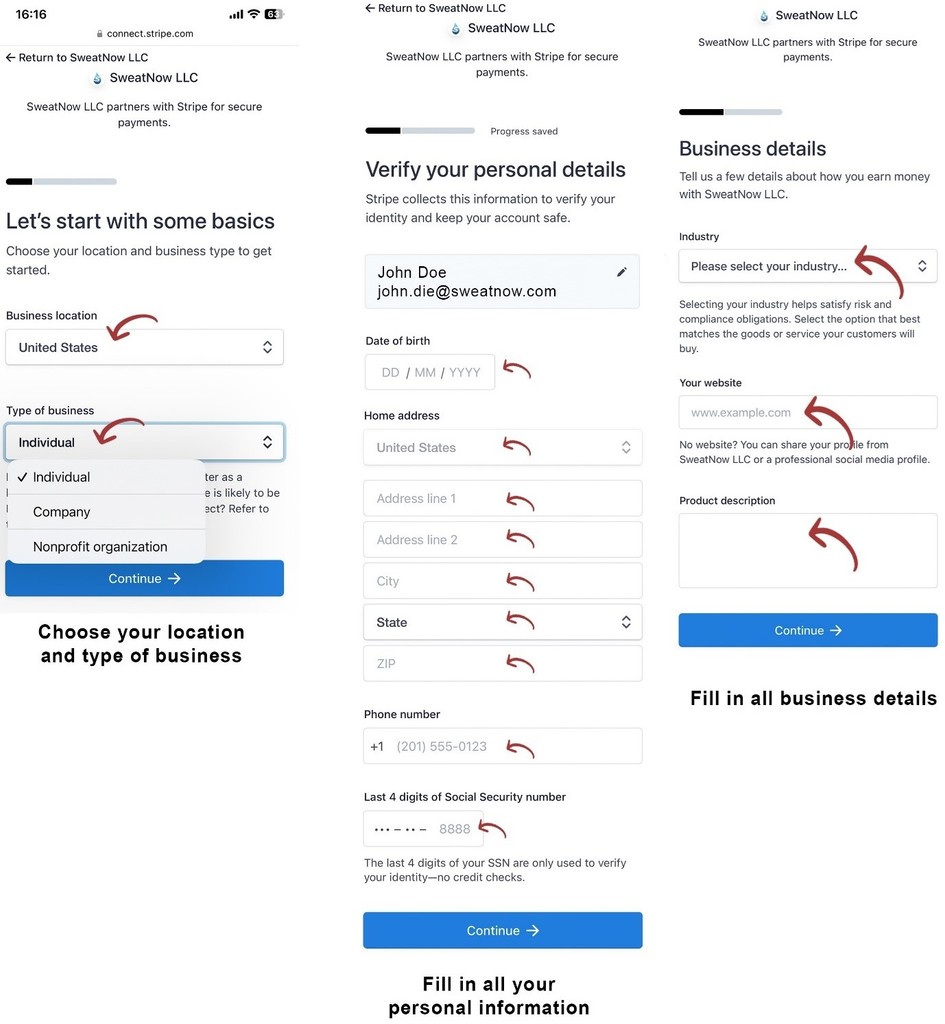
Each SweatNow account can only have one Stripe account linked, which cannot be changed by the user. If you need help creating a Connected account, please email us at support@sweatnow.com. Now you can receive payments.
Part 2: How to receive payment - FitPro
To start earning and receiving online payments with SweatNow, you must have:
- Successfully completed your FitPro profile,
- Activated subscription (check 1.1 How to upgrade)
- Stripe connected account and activated payments in Class detail (2.2 How to create Connected account)
- Configured cancelation policy in profile (2.4 How to send and refund payments / cancelation policies – FitPro)
After all these steps, users will be able to pay with their credit or debit card in the SweatNow application to your Stripe connected account. You can receive payments for classes and / or for tips. Keep in mind, all transactions are subject to modest processing fees. For detailed information about payment processing fees check Terms and Conditions.
Payouts are fully managed by Stripe, for more information visit Stripe Payouts.
Your default payout schedule is daily automatic. You can change this in your Stripe Dashboard to weekly automatic, monthly automatic, or manual payouts. Note that the first Stripe payout after setting up your Stripe account may take a few extra days as Stripe verifies the initial transaction, then daily payouts will follow.
Part 3: How to send and refund payments / cancelation policies - FitPro
SweatNow does not process payments or refunds, they are fully in the hands of the Stripe payment gateway. All payments and refunds are made directly between the end user and the FitPro trainer using the Stripe payment gateway. In cases of class cancellations or situations where refunds are owed to paid users, it is the FitPro's responsibility to issue refunds directly via their Stripe connected account dashboard. For every scheduled class or event with in-app payments enabled, the FitPro is required to include their cancellation policy. Users can set a default cancellation policy in their profile (profile → settings → Edit default cancellation policy) which will automatically be applied to every new class created. The default cancellation policy can be edited for each new class added as appropriate for the specific event.
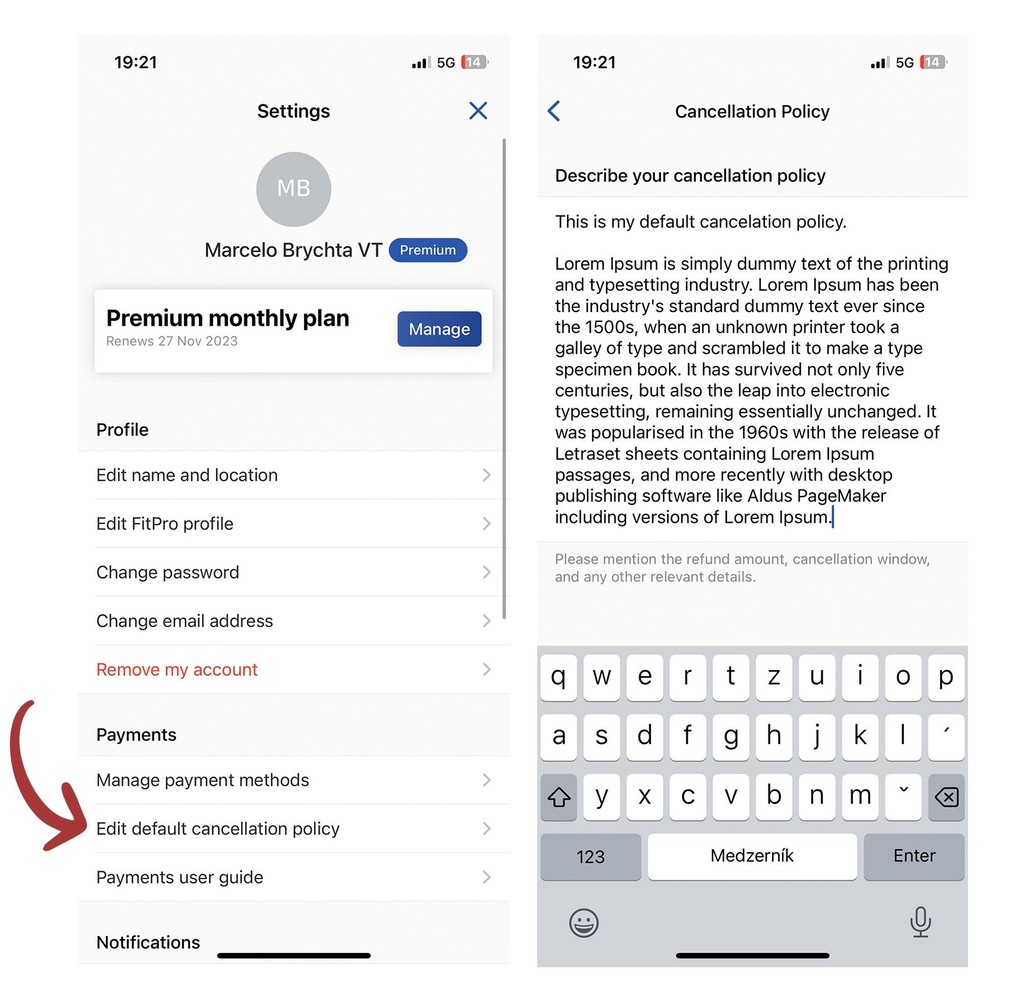
Cancelation policy should / could include:
- Class is fully refundable
- No refunds given
- Class is refundable up to a certain time period before start of event
- Whether refunds are full or partial
- Or, some combination of the above
Please note that SweatNow does not check or verify refund user requests relative to event cancellation policy. It is the responsibility of the FitPro to check refund requests against their individual class cancellation policy to determine whether any refund is due.
Part 4: Cancel or reschedule of booking
User cancels booking.
If the user paid for a class and then cancels their booking, they may request a refund of their payment. If the user requests a refund, the FitPro will be notified of the request along with class information and date and time of the cancellation. Subject to the cancellation policy that the FitPro trainer has set for the event in the SweatNow application, any refund due must be returned by the FitPro via their Stripe connected account dashboard. If the user does not request a refund for the cancelled booking, the FitPro is not obligated to process a refund. The FitPro and the user can agree on an alternative class date or another form of compensation if they choose.
FitPro cancels booking
If the FitPro cancels a class session, he/she needs to fully refund all users who have paid for the canceled class.
FitPro reschedule booking.
If the date or time is changed by the FitPro, users do not have to accept this change and can request a refund of their payment. In this case, the FitPro is obliged to send the full amount without fees back to the user who paid for the class.
Part 5: How to refund payment back to customer
User cancels booking
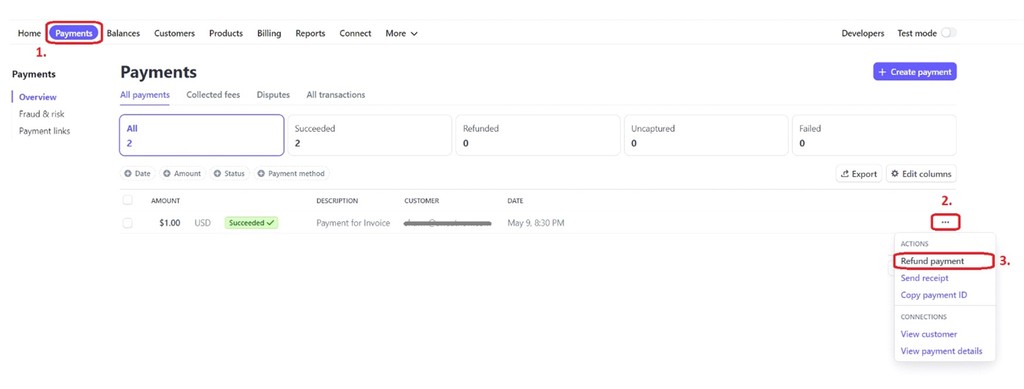
- Login to Stripe dashboard → Payments
- Here are all the listed payments which you received through the Stripe platform
- Find the specific class payment, click on three dots for more and select the action "Refund payment"
- Set the amount you want to refund, select reason and click Refund.
Please note, refunds take 5-10 days to appear on a customer's statement. Stripe's fees for the original payment won't be returned, but there are no additional fees for the refund. More information at Fees for payments.
How to do custom payment directly to customer
If you want to send a higher amount than you received, you have the option of manual payment in Stripe. For example send money for more paid classes.
- Login to Stripe dashboard → Payments → Create payment → Manual payment Link to manual Payment
- Fill in all the required fields and data and send the payment
How to pay for class – Standard user
If a FitPro creates a class where a payment is required, the user has the option to pay by credit or debit card directly in the SweatNow mobile application. Before paying, the user is notified by a pop-up window that contains information about the amount that will be withdrawn from their bank account and their default card. Payment card management is located in Profile → Settings → Manage payments methods.
All users have the possibility to modify their payment cards. The SweatNow mobile app does not hold credit card information, it is stored securely on the Stripe platform. In this section you will find information on what a connected account is, how to accept a payment, how to refund a payment.
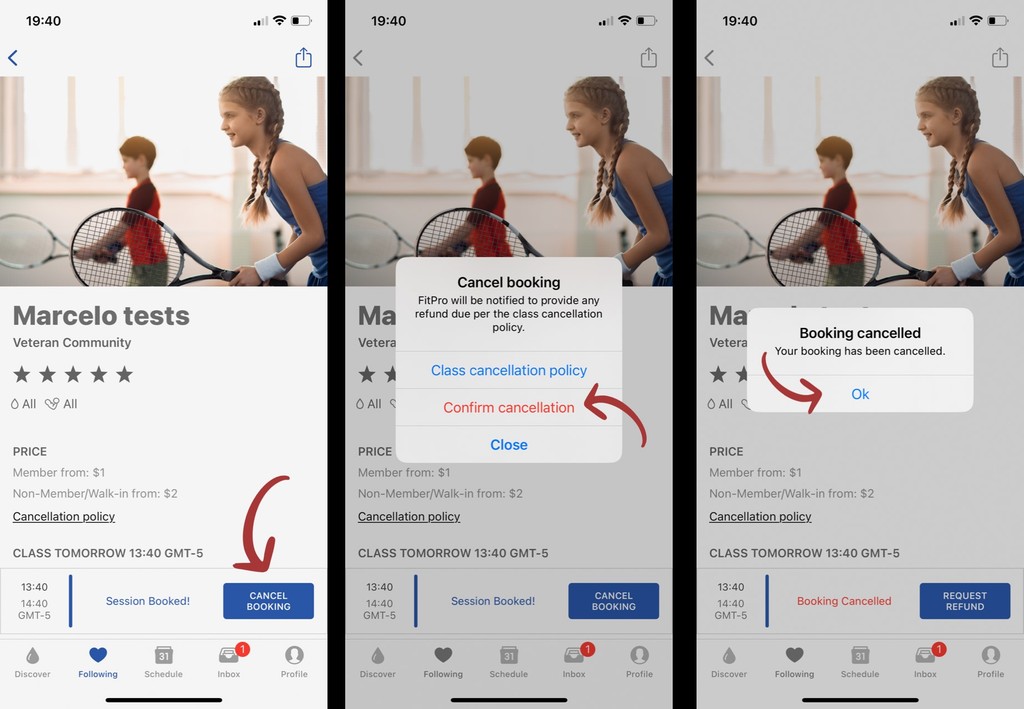
Cancelling a paid class booking and requesting refund – Standard User
If you cancel a paid class booking, you may request a refund of your payment directly in the SweatNow app by clicking the "Request refund" button on the class information page for the cancelled booking. If you request a refund, the FitPro will be notified of the request along with class information and date and time of the cancellation. Subject to the cancellation policy that the FitPro trainer has set for the event in the SweatNow application, processing any refund due is the responsibility of the FitPro.
Any refunds issued will be processed via Stripe and credited to the original payment method (card) used. Please note that if you do not request a refund for the cancelled booking, the FitPro is not obligated to process a refund. Any questions on status of refunds due should sent directly to your FitPro via their contact information provided in the SweatNow app.
Cancel your booking – Standard user
Request refund – Standard user
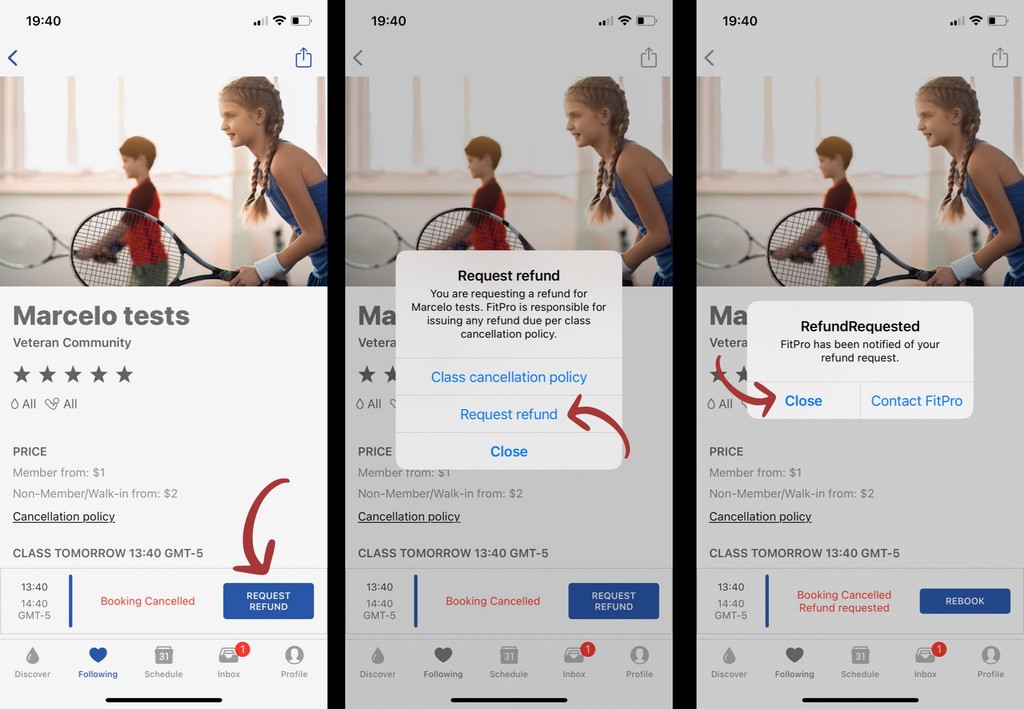
Alternatively, the FitPro and the user can agree on an alternative class date or another form of compensation if they choose. If you have any questions, feel free to contact us at support@sweatnow.com.